

Build Recipes
Build Recipes is the section used to create and manage configurations that define how Docker images are built within a Code Flow.
A Build Recipe contains the registry, image repository, image tag, and build steps required to create a Docker image.
Build Steps define the commands that are executed during the Docker image build process.
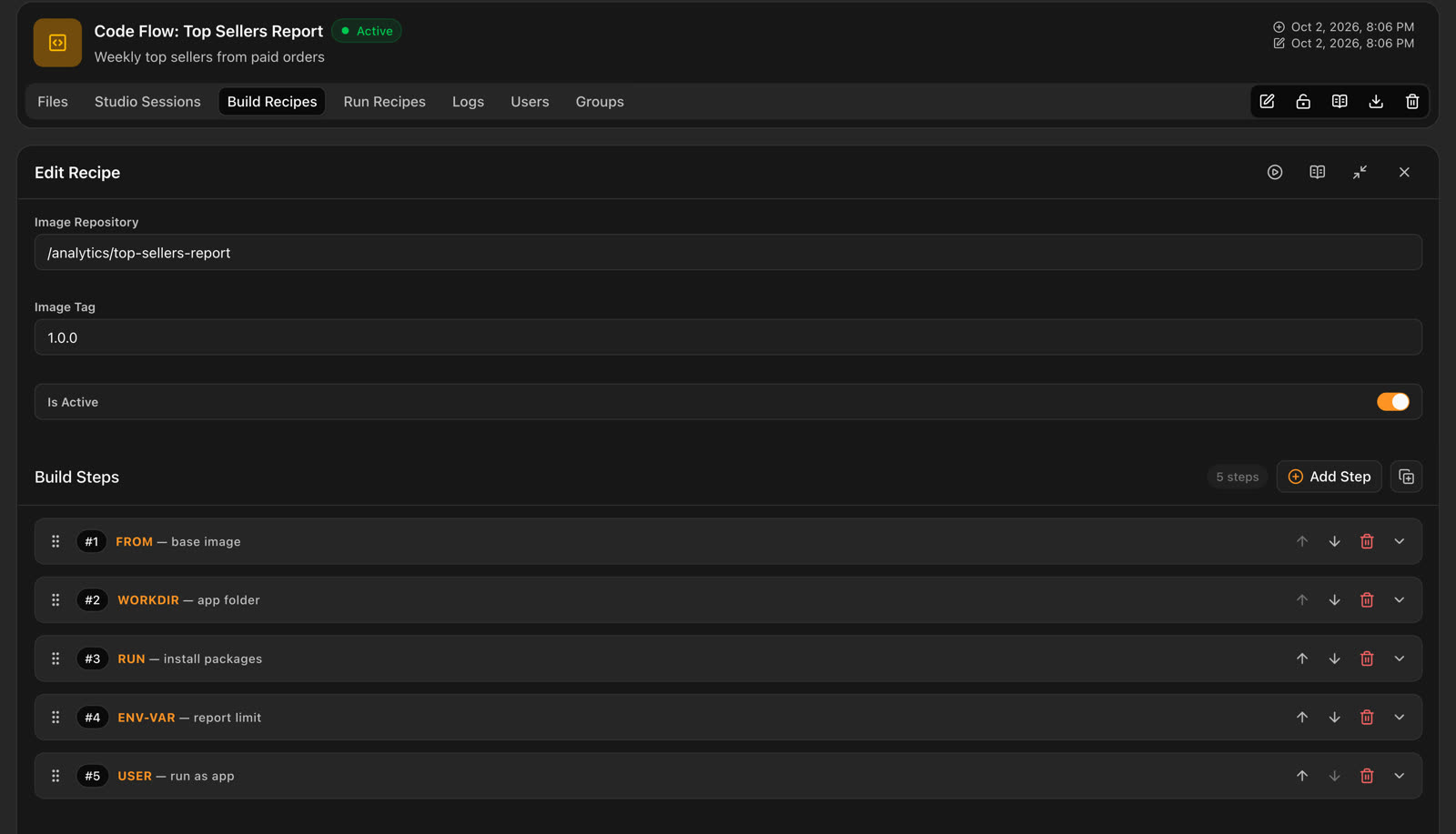
When a prepared recipe is executed using the Start action, the image build process begins. The build is performed by the selected Agent, and the Docker image is created according to the registry, image repository, and build steps defined in the recipe.
Build Recipes Page
The Build Recipes page is used to view and manage Docker image configurations created within the related Code Flow.
Existing recipes can be displayed in List View or Card View.
To create a new configuration, use the Add Recipe button in the upper-right section of the page.
List View
In List View, Build Recipes are displayed in a table.
The following information is displayed:
| Column | Description |
|---|---|
| Agent | Displays the Agent used to build the Docker image. |
| Steps | Displays the build steps defined in the recipe. |
| Registry | Displays the registry used for the Docker image. |
| Image Repository | Displays the repository path of the Docker image. |
| Image Tag | Displays the tag assigned to the Docker image. |
| Create Date | Displays the date and time when the recipe was created. |
| Update Date | Displays the date and time when the recipe was last updated. |
| Status | Displays the current status of the recipe. |
The three-dot menu on the right side of each record provides access to the available actions for the recipe.
Card View
Build Recipes can also be displayed as cards.
Each card contains the basic information about the recipe.
| Field | Description |
|---|---|
| Agent | Displays the Agent used to build the image. |
| Steps | Displays the build steps defined in the recipe. |
| Registry | Displays the registry used for the Docker image. |
| Image Repository | Displays the repository path of the Docker image. |
| Image Tag | Displays the tag assigned to the Docker image. |
| Create Date | Displays the date and time when the recipe was created. |
| Update Date | Displays the date and time when the recipe was last updated. |
| Status | Displays the current status of the recipe. |
The three-dot menu in the upper-right section of the card provides access to the available actions for the recipe.
View Options
The Build Recipes page supports two different view types:
- List View
- Card View
The view buttons in the upper-right section of the page can be used to switch between the two views.
Changing the view only changes how the recipes are displayed.
Quick Search
The Filter... field in the upper-right section of the page can be used to quickly search through Build Recipes.
When a value is entered into the search field, the displayed records are narrowed down to matching recipes.
This feature makes it easier to find a specific configuration when many recipes are available.
Advanced Filtering
The Filter button next to the quick search field can be used for more detailed filtering.
Filter options can be used to display Build Recipes that match specific criteria.
Multiple filter conditions can be used to narrow down the results further.
Active filters can be cleared when necessary to display all recipes again.
Adding a Recipe
The Add Recipe button is used to create a new Docker image configuration.
The Add Recipe page allows users to define the basic information and Build Steps that determine how the Docker image will be created.
The main fields are:
| Field | Description |
|---|---|
| Agent | Specifies the Agent that will build the Docker image. |
| Registry | Specifies the registry to be used for the Docker image. |
| Image Repository | Specifies the repository path of the Docker image. |
| Image Tag | Specifies the tag assigned to the Docker image. |
| Is Active | Specifies whether the Build Recipe is active. |
After these values are defined, the Docker image build process can be configured in the Build Steps section.
Build Steps
Build Steps define the operations that are performed while building the Docker image.
Each step represents a Docker build command.
New steps can be added to the recipe using the Add Step button.
Available steps include:
FROMCOPY-HOSTCOPY-SCRIPTCOPY-URLENTRYPOINTENV-VARPROXYRUNUSERWORKDIR
The steps are executed in sequence. Therefore, their order directly affects how the Docker image is built.
FROM Step
The first step of a Build Recipe must always be
FROM.
The FROM step defines the base image that will
be used to build the Docker image.
For example, when creating a Python-based working environment, an appropriate Python image can be used as the base image.
The basic structure can be represented as:
FROM → Other Build Steps
This step provides the base image on which the remaining build operations are performed.
COPY-SCRIPT Step
The COPY-SCRIPT step is used to associate a
File from the Code Flow with the Docker image being built.
A File previously saved to DataFloem under the related Code Flow can be selected in this step.
The selected File is included in the Docker image during the build process.
This allows work developed in Jupyter Notebook and saved using Save to DataFloem to become part of the Docker image.
The basic relationship can be summarized as:
File → COPY-SCRIPT → Docker Image
Ordering Build Steps
Build Steps are executed in a specific order.
The ordering controls next to each step can be used to change the position of the step.
A step can be moved up or down to determine when it will be executed during the Docker image build process.
The first step must be FROM. The remaining
steps can be arranged according to the requirements of the image.
For example:
FROM → COPY-SCRIPT → RUN → ENTRYPOINT
Deleting a Step
A Build Step can be removed using the delete option next to the related step.
When a step is deleted, the corresponding Docker build operation is removed from the recipe.
Saving a Recipe
After the Docker image information and Build Steps are configured, use the Save button to save the recipe.
The saved recipe is displayed on the Build Recipes page.
The Cancel option can be used to leave the recipe creation page without saving the changes.
Recipe Actions
The three-dot menu of each Build Recipe provides access to the available actions for that recipe.
The main actions are:
| Action | Description |
|---|---|
| Edit | Used to edit the Build Recipe. |
| Delete | Used to delete the Build Recipe. |
| Start | Starts the Docker image build process using the recipe. |
Building a Docker Image
To create a Docker image from a prepared Build Recipe, use the Start action from the recipe's actions menu.
When the recipe is started, the build process is sent to the related Agent.
The Agent executes the Build Steps defined in the recipe in sequence and builds the Docker image.
The basic process can be summarized as:
Build Recipe → Start → Agent → Build Steps → Docker Image
If the recipe contains a COPY-SCRIPT step, the
related File is also included in the image build process:
File → COPY-SCRIPT → Build Recipe → Agent → Docker Image
This structure allows code developed within a Code Flow to be converted into a Docker image using the defined Build Steps.
Status
The current status of each Build Recipe is displayed in both List View and Card View.
A recipe with an Active status indicates that the recipe is active in the system.
The status information makes it possible to quickly identify the current state of recipes directly from the Build Recipes page.
Pagination
Pagination controls are available at the bottom of the Build Recipes page.
The total number of recipes is displayed in the lower-left section.
For example:
Total 3 records
The pagination controls in the center can be used to:
- Go to the first page.
- Go to the previous page.
- Go to the next page.
- Go to the last page.
- View the current page and the total number of pages.
The Rows per page option in the lower-right section can be used to change the number of Build Recipes displayed on each page.