

Studio Sessions
Studio Sessions is the section used to start a Jupyter Notebook working environment within a Code Flow and view existing Studio Sessions.
Users can start a new Studio Session using the Start Session option.
The selected Studio is started on the cluster, and the created session is displayed on the Studio Sessions page.
When a running session is opened using the Open option, the Jupyter Notebook working environment is displayed in a side panel.
What is a Studio Session?
A Studio Session is a working environment created by running a Studio on a cluster within a Code Flow.
When a Studio Session is started, the required working environment runs on the cluster and the session is displayed on the Studio Sessions page.
Users can open a running session to access the Jupyter Notebook environment and perform code-based development.
Studio Sessions Page
The Studio Sessions page is used to view and manage Studio Sessions started within the related Code Flow.
Studio Sessions are displayed as cards.
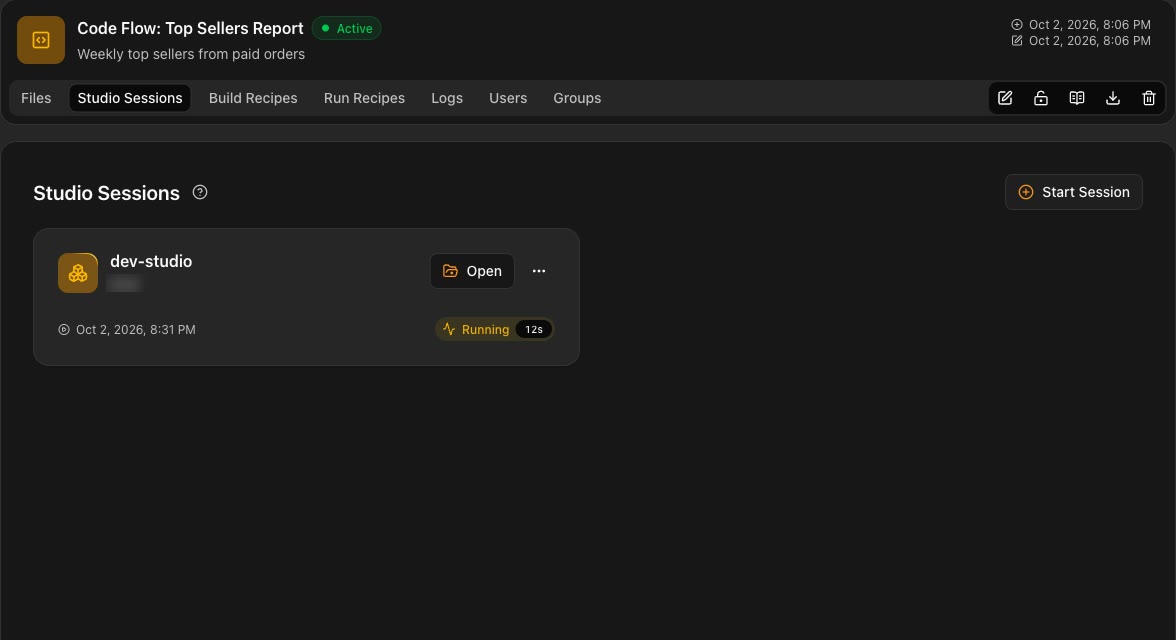
If multiple Studio Sessions are available, each session is displayed as a separate card.
A new Studio Session can be started using the Start Session button in the upper-right section of the page.
Starting a Session
The Start Session button is used to create a new Studio Session.
When a session is started, the selected Studio is run on the cluster.
Once the Studio starts running, the created session is displayed on the Studio Sessions page.
The general process can be summarized as follows:
Code Flow → Start Session → Studio Session
Session Card
Each started Studio Session is displayed in a separate card.
The card contains basic information about the session.
| Field | Description |
|---|---|
| Studio Name | Displays the Studio used to create the session. |
| User | Displays the user who started the session. |
| Start Date | Displays the date and time when the session was started. |
| Status | Displays the current status of the session. |
| Running Time | Displays how long the session has been running. |
For example, the Running status indicates that the Studio Session is active.
The running time makes it possible to track how long the session has been active directly from the card.
Opening a Studio Session
To access a running Studio Session, use the Open button on the session card.
When the Open button is clicked, the Jupyter Notebook working environment associated with the Studio Session opens in a side panel.
Users can develop code and use the development tools provided by Jupyter Notebook within this environment.
This allows users to access the working environment without leaving the Code Flow page.
Jupyter Notebook Working Environment
When a Studio Session is opened, the user gains access to the Jupyter Notebook-based working environment.
This environment allows users to perform code-based development within the Code Flow.
Users can develop their code in Jupyter Notebook.
Work developed in Jupyter Notebook can be saved to DataFloem using the Save to DataFloem option.
The saved work is then displayed in the Files section of the related Code Flow.
The general process can be summarized as follows:
Studio Session → Jupyter Notebook → Code Development → Save to
        DataFloem → File
Session Status
The current status of a Studio Session is displayed on the session card.
A running session is displayed with the Running status.
The card also displays how long the session has been running.
For example:
Running | 1h 16m 14s
This information makes it possible to track the current status and running time of the session directly from the Studio Sessions page.
Session Actions
Each Studio Session card contains a three-dot actions menu.
This menu provides access to the available operations for the related session.
Available actions may vary depending on the current state of the session and the user's permissions.
Pagination
Pagination controls are available at the bottom of the Studio Sessions page.
The total number of sessions is displayed in the lower-left section.
For example:
Total 1 record
The pagination controls in the center can be used to:
- Go to the first page.
- Go to the previous page.
- Go to the next page.
- Go to the last page.
- View the current page and the total number of pages.
The Rows per page option in the lower-right section can be used to change the number of sessions displayed on each page.